Getting started
Talewright stories are folders of text files. Write in Talemark, check your changes, then play the story and share it. We recommend VS Code with the Talewright extension for writing help. You can also use any plain-text editor and the browser player.
Set up your editor
The current Talewright extension supports Linux computers with Intel or AMD 64-bit processors (Linux x64). It is tested on Ubuntu 24.04 and Linux Mint 22.3. Windows, Mac, Linux ARM and browser-hosted VS Code are not supported by this extension release. On those systems, use a plain-text editor and the browser player, or the separate story tools described below.
- Install VS Code.
- In Extensions, install Talewright by squid-farm from the Marketplace. Choose Switch to Pre-Release Version for preview releases.
- Install YAML by Red Hat for help with the story settings file.
- Open your story folder using File > Open Folder. It should contain
story.talewright.yamland your.talefiles. - Trust the folder if it is your own story or you trust its source. Open a
.talefile; the language indicator should say Talemark.
The extension highlights your writing, suggests story names and reports mistakes as you edit. Its live-checking tool, called the language server, is included: you do not need to install .NET or build Talewright. Save your changes before checking or playing the files on disk. The extension guide includes a download-and-install alternative and system requirements.
Optional: install the desktop tools
For checks without opening the player, making story ZIPs, or testing individual scenes, run Talewright: Set Up CLI from VS Code’s Command Palette (Ctrl+Shift+P). It uses an existing installation when available. Otherwise, it offers a portable download or, when the required .NET tools are installed, asks for approval to install the CLI. Nothing is installed just by opening a story.
The CLI is a separate command-line tool; installing the extension does not install it. Follow Get the story-checking tools to select an extracted download or set up the tool without VS Code. Windows, Mac and Linux downloads exist; only Linux x64 execution has been verified so far. The native Author Debugger also needs your computer’s web-viewing components. Making a separate website or desktop game still requires the .NET 10 SDK.
After setup, the Command Palette offers:
- Talewright: Validate Story to check saved files.
- Talewright: Publish Story ZIP to choose where to save story files for a player.
- Talewright: Open Author Debugger to jump to a scene and test choices and state.
These are not a Play button or VS Code’s F5 debugger. To play from the beginning, open a story ZIP in the browser player. The Author Debugger is a separate testing window.
What goes in a story folder?
Start with two files:
my-story/
  story.talewright.yaml
  story.tale
story.talewright.yaml holds the title, starting scene, characters and rules.
Your .tale files hold scenes, dialogue and choices. As your story grows, you can add more
files and subfolders. Your first story provides the complete starting text.
Use another editor and the browser player
Any editor that saves plain text works. On Mac, use TextEdit’s plain-text mode. Write your story, save the files, zip the story folder and open the Talewright web player.
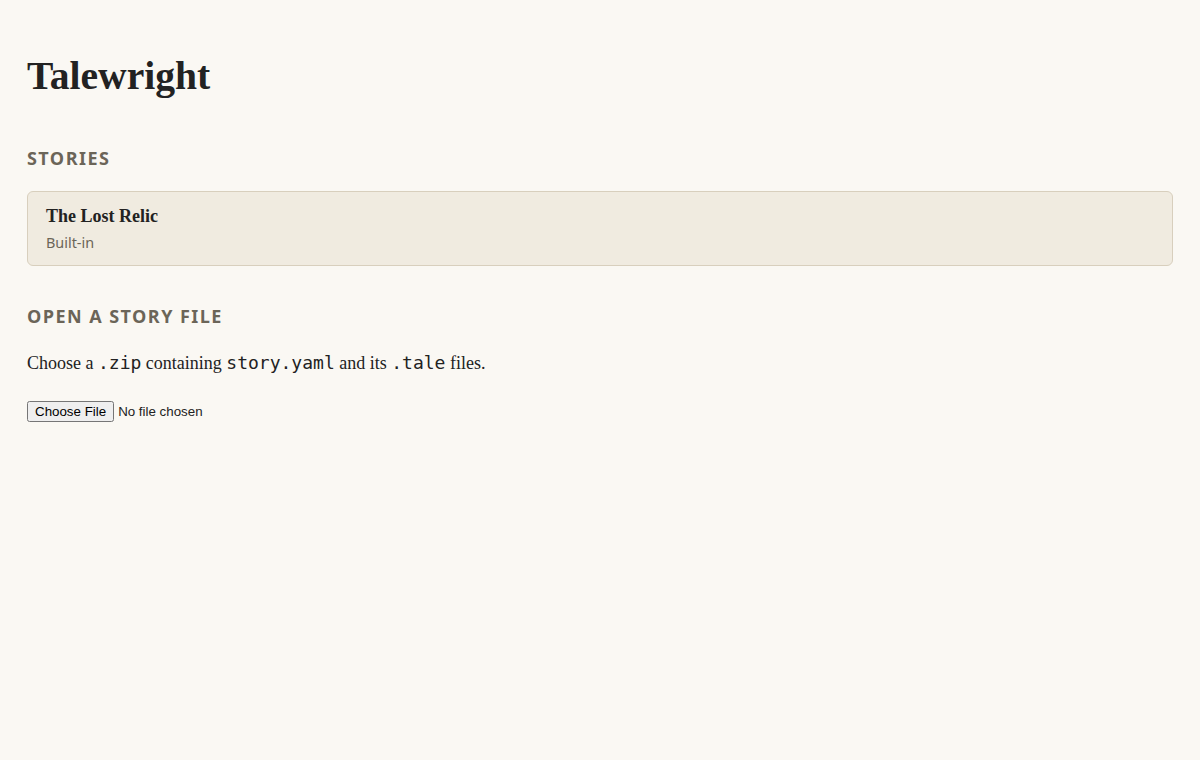
- Pick The Lost Relic to try a sample.
- Choose Open a story file to check and play your own ZIP.
The player reads the ZIP on your computer; it does not upload it or edit your source files. After making changes, create a fresh ZIP and open it again. It does not automatically refresh from your editor. See the ZIP instructions.
Send that same ZIP to friends to play in the browser. It contains your story, not a separate website or app. A ready-to-use general-purpose desktop player is not included in the CLI download.
Next
These docs are maintained with the code in squid-farm/talewright. Found a problem? Open an issue.