Playing and saving
The web player, the desktop player and published games all share the same screen.
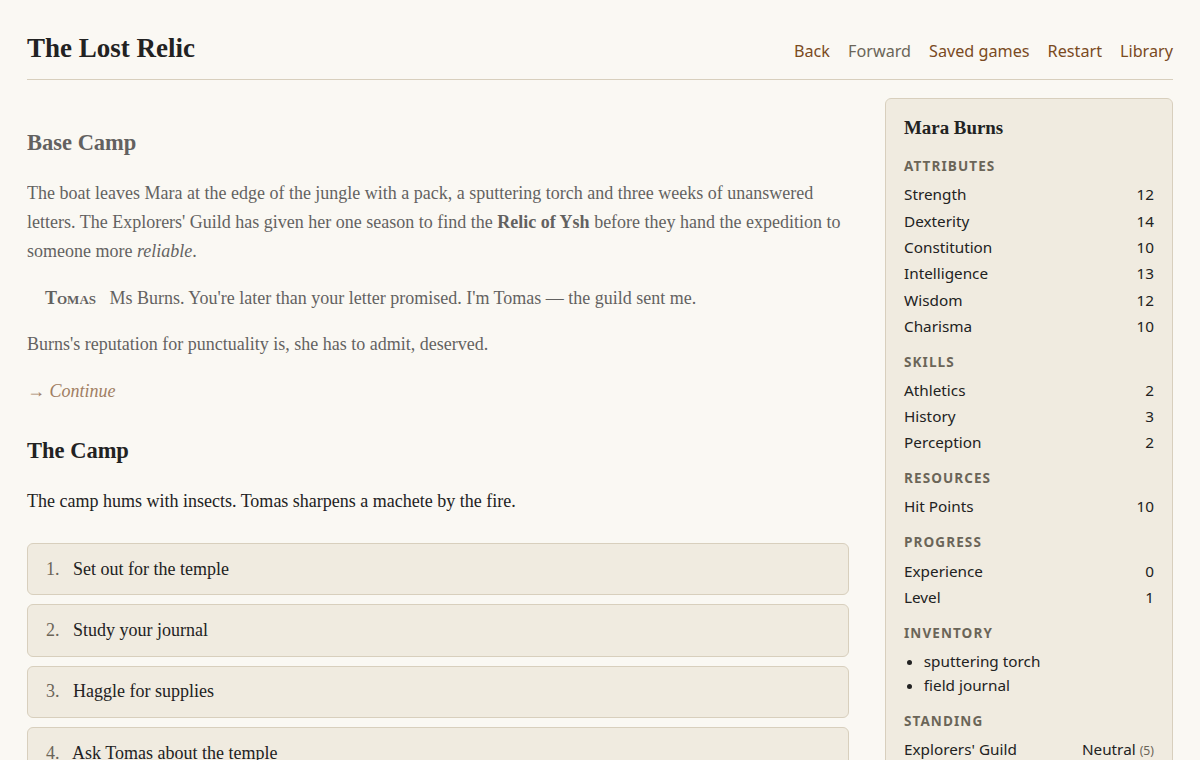
The screen
- Story text builds up as you play. Earlier scenes stay visible above the current one, and your
past choices are shown as
→ Choice. - Choices are the numbered buttons at the bottom. Choices whose requirements aren’t met are hidden.
- Notes appear inline when something happens to the player: skill check rolls, stat and standing changes, XP gained.
- The character sheet shows the player’s stats, skills (only those above 0), inventory and faction standings. Stats boosted by an item show the bonus.
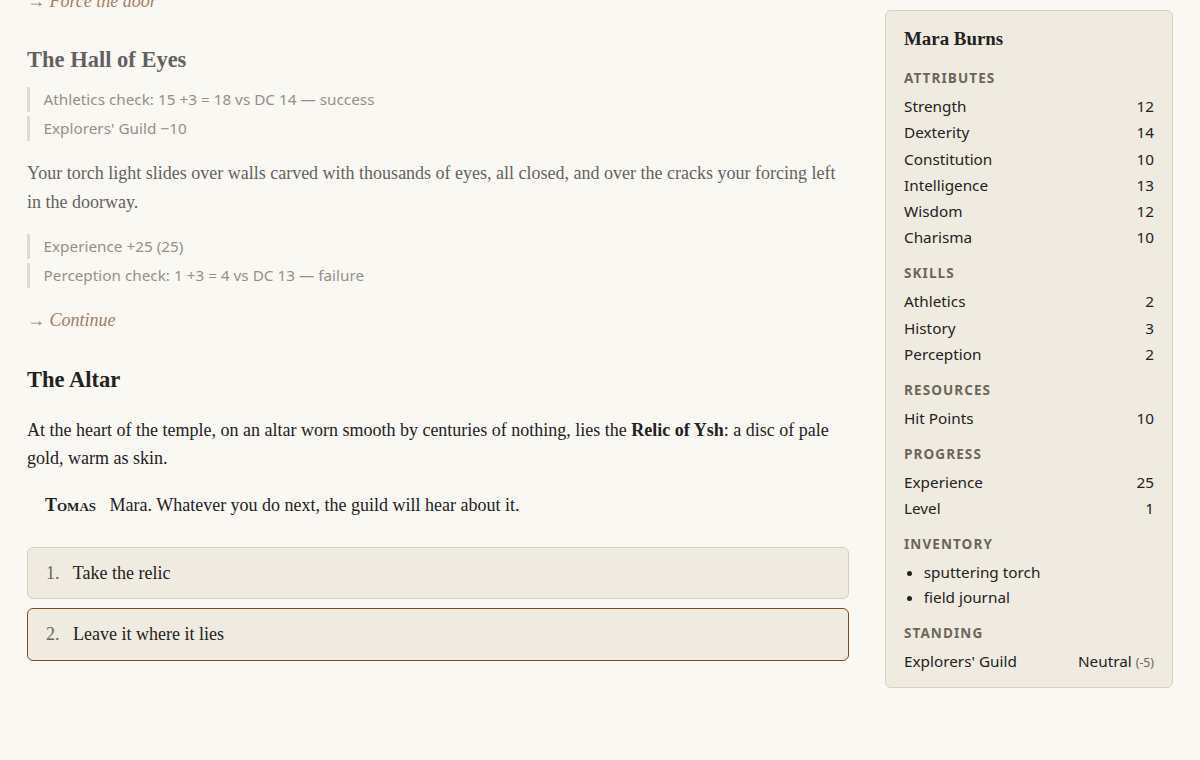
The toolbar
| Button | What it does |
|---|---|
| History | Read earlier recorded passages and choices without changing your playthrough. |
| Back / Forward | Step through your choices, like undo and redo. Picking a different choice after going back starts a new path. Authors can hide these with game.undo: false. |
| Quick Save | Write or replace this story’s one quick checkpoint, without an overwrite prompt. Named saves are never replaced by this action. |
| Saves | Open the Saves dialog to create or load a named save. Saving over an existing slot asks you to confirm. |
| More actions → Restart | Confirm starting again from the beginning. Your saves are kept. |
| More actions → Library | Return to the list of stories (not shown in published games). |
The toolbar stays visible while you scroll. Quick Save confirmations and storage errors appear in the toolbar without returning you to the start of the passage. The Saves dialog refreshes automatically when opened and lists the newest saves first. Each new save shows its name, scene title, save time in your local time zone and character name. If saved details cannot be read, the dialog marks them unavailable rather than inventing a timestamp. Each story has its own Quick Save checkpoint. Saving again replaces only that checkpoint; use named saves to keep multiple points in the story.
Reading earlier passages
Main play keeps only a recent window of passages on screen. Earlier text and your recorded choices are still available through History, even when the author has disabled Back/Forward. History opens on the newest page; use Earlier passages and Later passages to read the rest. Historical choices are text, not buttons. Reading does not undo choices, reroll checks or run story effects.
History pictures stay unloaded until you activate Reveal image, which includes the image description. Hide image, changing pages and leaving History release that occurrence. A picture still used in main play remains available there. Revealing an image again can read its file again; edited or missing files may therefore look different or show a failure message.
Use Return to play, or press History again, to return to your prior reading position with focus on the History button. Story-changing controls are unavailable while History is open; return to play before choosing, saving, loading or restarting. History pages are not remembered across restart, load, or leaving for the Library. This limits on-screen content and image lifetimes, not the complete playthrough or all browser memory. Saves and undo/redo history are not shortened.
Loading asks Load save or Keep playing only if your current progress is not safely saved. This includes undo/redo history and your character, not just the visible passage. Cancel keeps your current game; a failed load also leaves it untouched. Use Close saves or Escape to return to play. If storage fails, check the displayed advice and use Retry save list; a failed save does not count as saved progress. If Quick Save fails, the previous checkpoint is kept: follow the storage advice and try Quick Save again. Restarting or reopening the player keeps both quick and named saves.
Where saves are kept
| Player | Location |
|---|---|
| Web | In your browser, for that website only. Clearing site data deletes them, and they don’t sync between browsers or devices. |
| Desktop (Windows) | %LOCALAPPDATA%\Talewright\saves |
| Desktop (macOS) | ~/Library/Application Support/Talewright/saves |
| Desktop (Linux) | ~/.local/share/Talewright/saves |
There’s no autosave yet (#54), so save before closing the player. Web saves can’t be backed up yet either; exporting saves to a file is planned (#84).
Updating a story with existing saves
Saves are tied to the exact story files they were made with. Any change to the story, even fixing a typo, means older saves won’t load. Talewright checks before loading, shows a message and leaves the current game untouched. Bear this in mind before releasing an update to players. Migrating old saves to new story versions is planned (#39).
Updated players can load older saves without summary details. Saves created with the new details need an updated player; earlier players do not recognize the additional metadata.
Character creation
If the story has a creation section, players first choose
their name, pronouns, preset and starting stats. Pronoun choices show the full forms:
she/her/herself, he/him/himself, they/them/themselves, or it/itself,
depending on which sets the author offers. Use default name restores the author’s name.
Restart keeps the created character. Loading a save switches to the character in that save.
Very long playthroughs
After 10,000 choices in one playthrough, the player stops accepting new choices and explains why. Saving, Back, Restart and Library still work.
These docs are maintained with the code in squid-farm/talewright. Found a problem? Open an issue.